
Connect Snowflake
Connect a Snowflake database to NQRust Analytics.
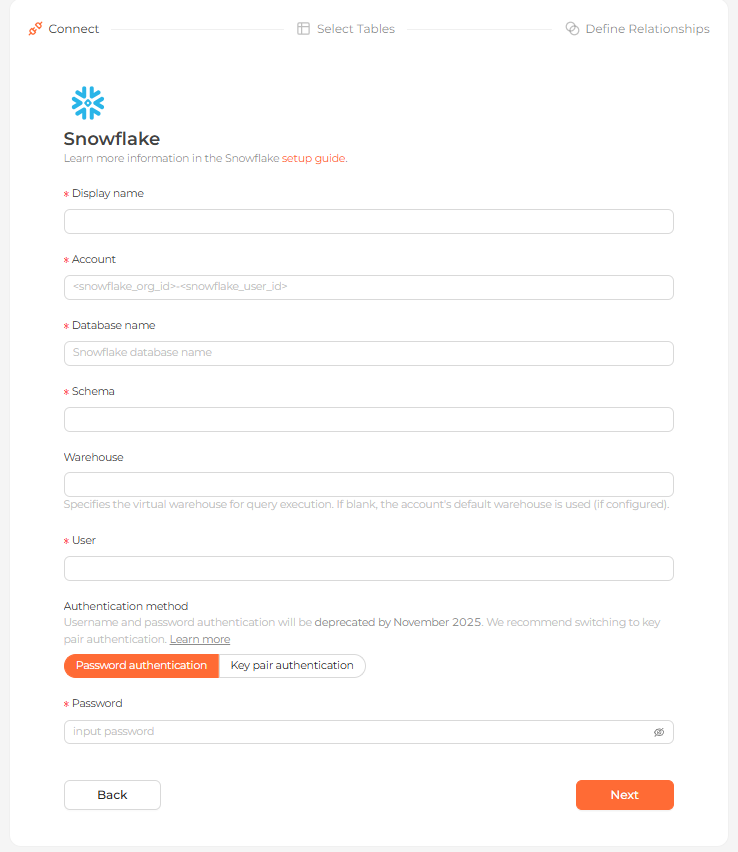 The Snowflake connection form in the Analytics UI
Connection settings
| Field | Description |
|---|---|
| Display name | (required) The name this database shows up as in the Analytics UI. |
| Account | (required) Your Snowflake account, in the form <snowflake_org_id>-<snowflake_user_id>. |
| Database name | (required) The database you want to connect to. |
| Schema | (required) The schema within that database. |
| Warehouse | (optional) Virtual warehouse for query execution. If blank, the account's default warehouse is used (if configured). |
| User | (required) The database username. |
| Authentication method | Choose Password authentication or Key pair authentication. |
| Password | (required for password authentication) The user's password. |
Authentication
You can authenticate two ways:
- Password — a username and password.
- Key pair — a username plus an unencrypted RSA private key file.
Snowflake plans to deprecate password authentication by November 2025. Switch to key pair authentication.
If you encounter an error about an encrypted private key, decrypt it with OpenSSL before uploading. NQRust Analytics requires an unencrypted RSA private key in DER format.
Steps
Enter connection details
Complete the connection settings above and continue. Under Authentication method, password authentication is being deprecated (around November 2025). Key pair authentication is recommended, where you provide a private key instead of a password.
Select tables
Choose the tables you want. Each table becomes a data model.
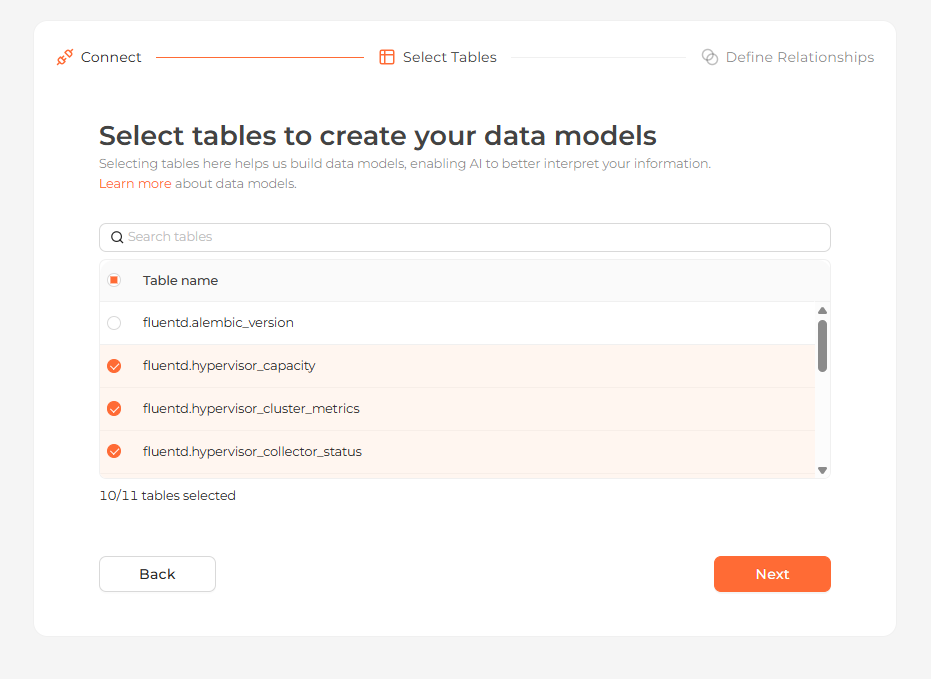 Selecting the tables to import as data models
Define relationships
Connect your tables using their primary and foreign keys, or add the relationships manually.
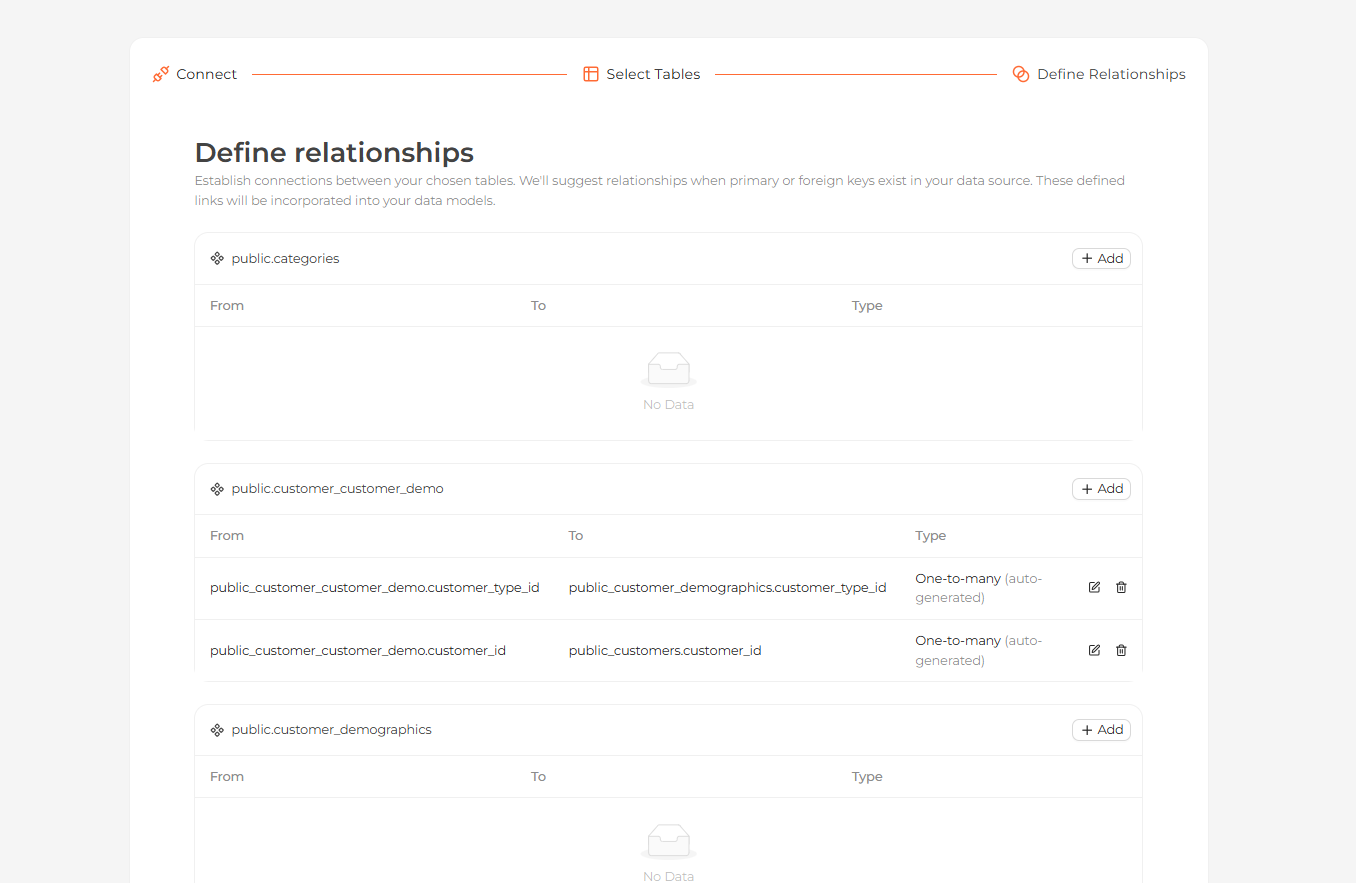 Defining relationships between the imported tables
Start exploring
Your tables now appear on the Modeling page. Open the Home page and ask questions about your data in natural language.
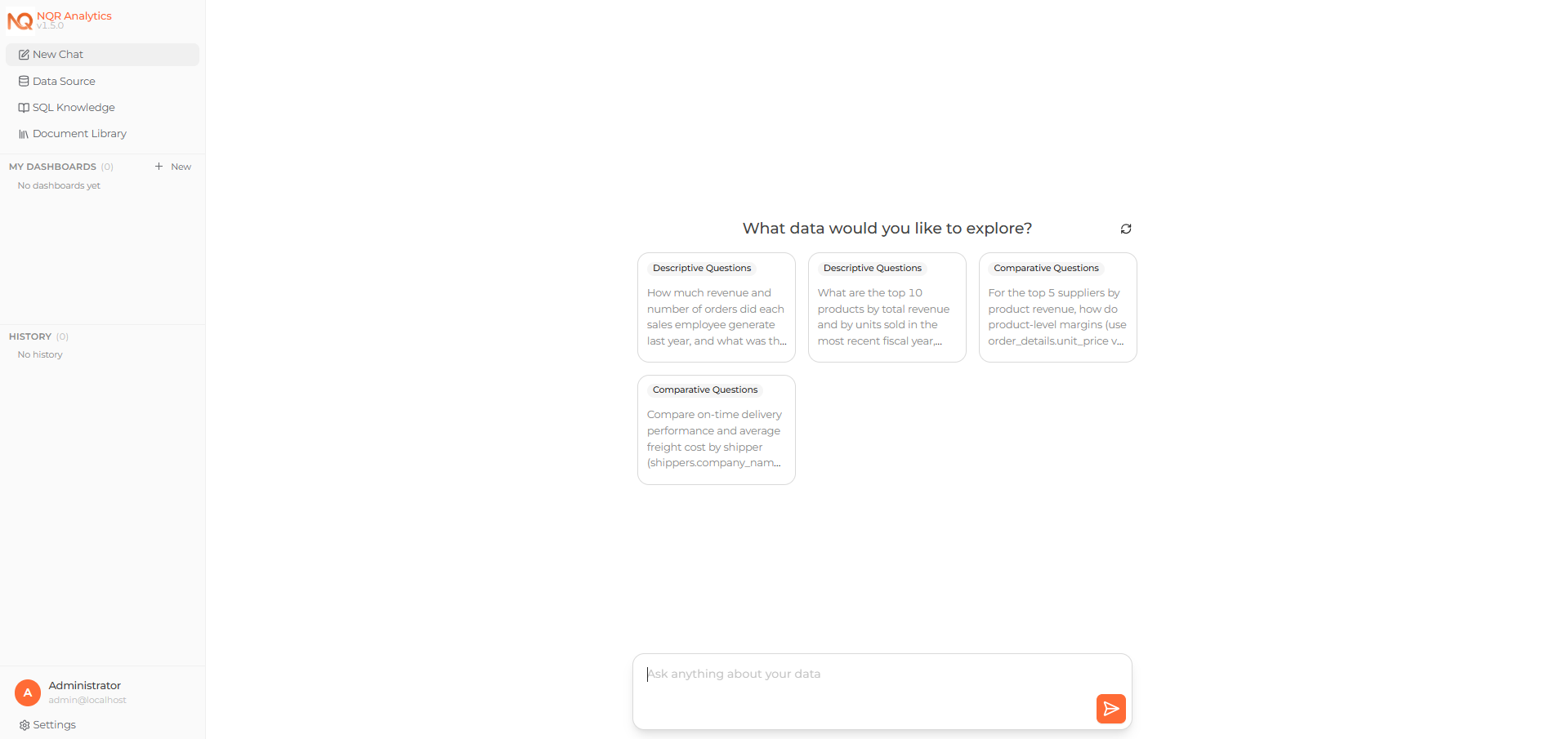 Asking a question about the connected data on the Home page