
Connect ClickHouse
Connect a ClickHouse database to NQRust Analytics.
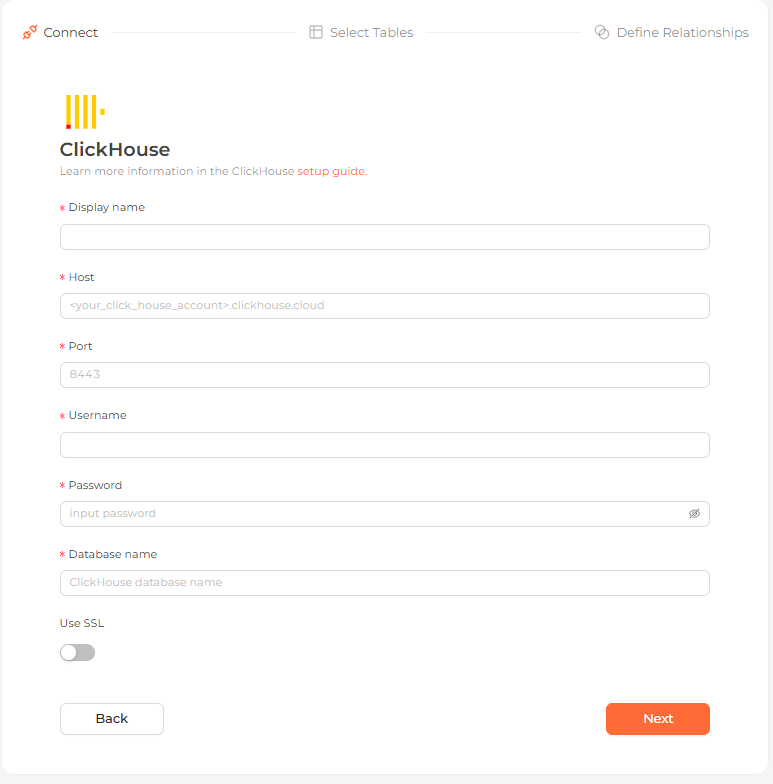 The ClickHouse connection form in the Analytics UI
Required permissions
The ClickHouse account you connect with needs:
SELECTon tables and viewsCREATE VIEWDROP VIEW
NQRust Analytics creates and drops temporary views during query execution to support its analytics and modeling features. These views use unique, system-generated names and will not conflict with your existing views.
Connection settings
| Field | Description |
|---|---|
| Display name | (required) The name this database shows up as in the Analytics UI. |
| Host | (required) The ClickHouse server's IP address or hostname, e.g. <your_click_house_account>.clickhouse.cloud. |
| Port | (required) The port the server listens on, e.g. 8443. |
| Username | (required) The account used to authenticate. |
| Password | (required) That account's password. |
| Database name | (required) The database to connect to. |
| Use SSL | (optional) Toggle SSL on for the connection. Off by default. |
Running ClickHouse locally on macOS or Windows? Use host.docker.internal as
the host so the container can reach your machine.
Steps
Enter connection details
Complete the fields above and click Next.
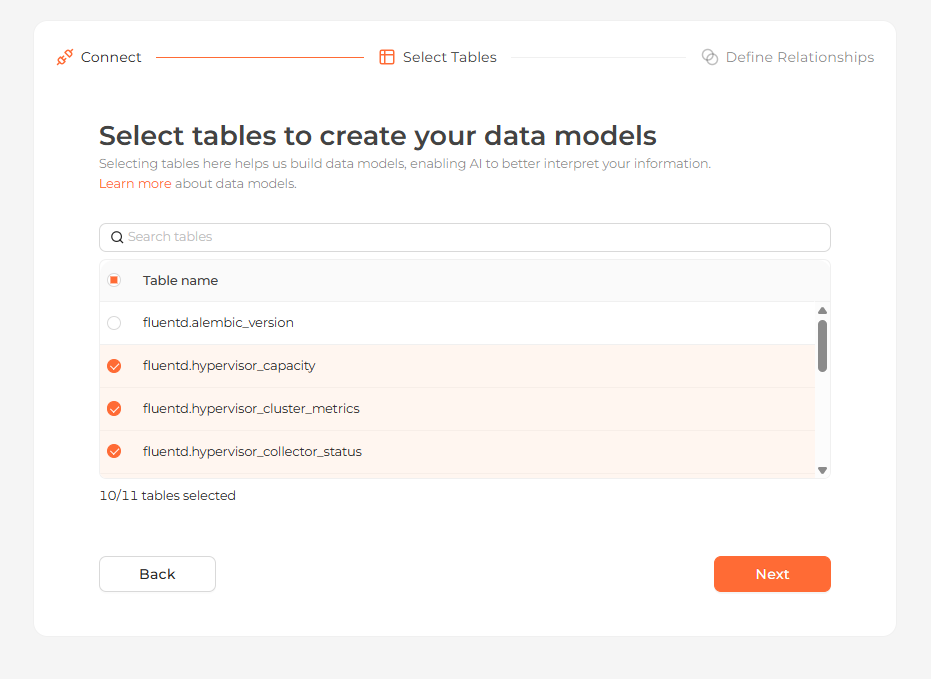
Define relationships
Connect your tables by specifying a source table and column, a target table and column, and a relationship type — based on primary and foreign keys, or added manually.
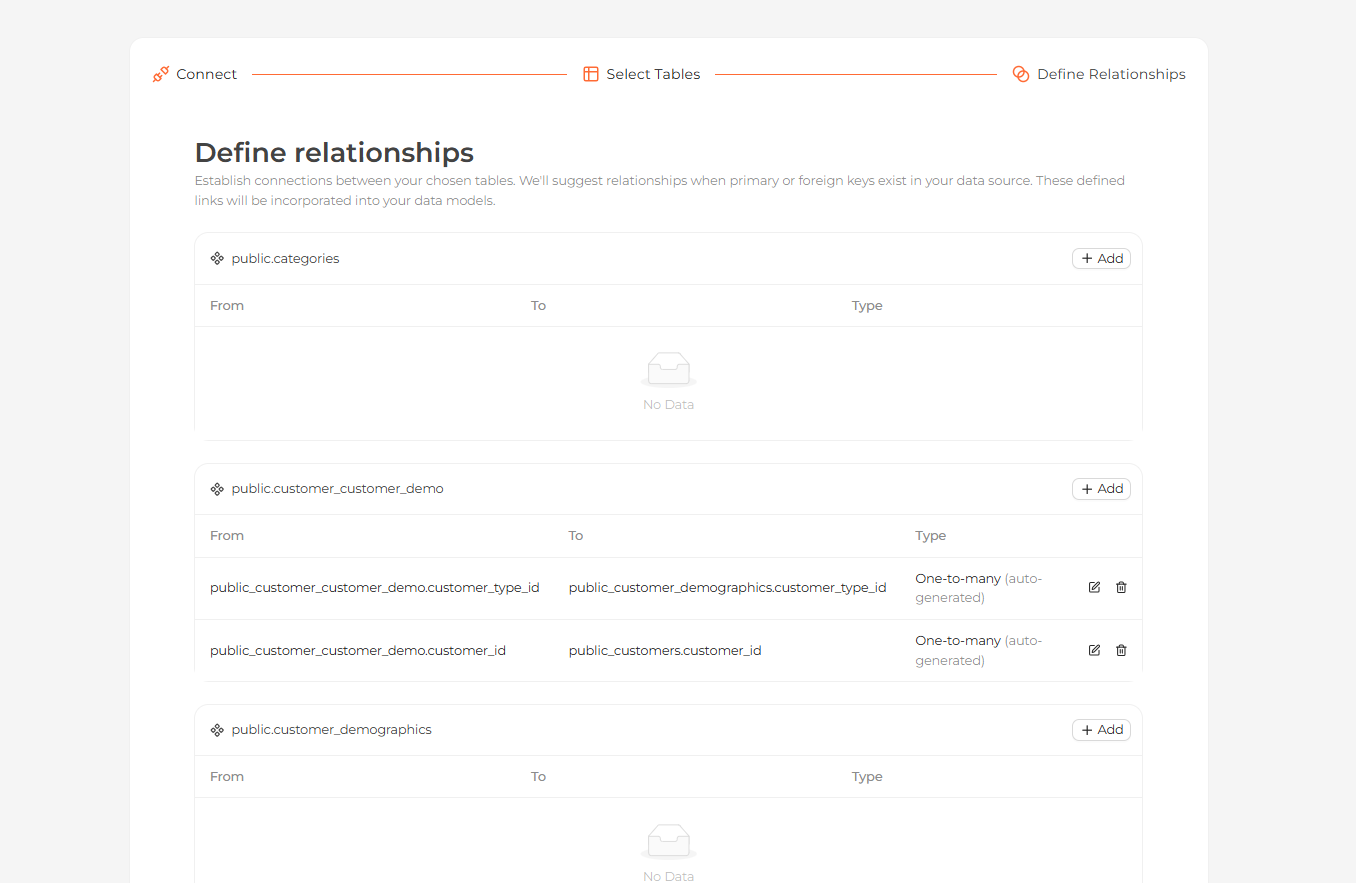 Defining relationships between the imported tables
Start exploring
Your tables now appear on the Modeling page. Open the Home page and ask questions about your data in natural language.
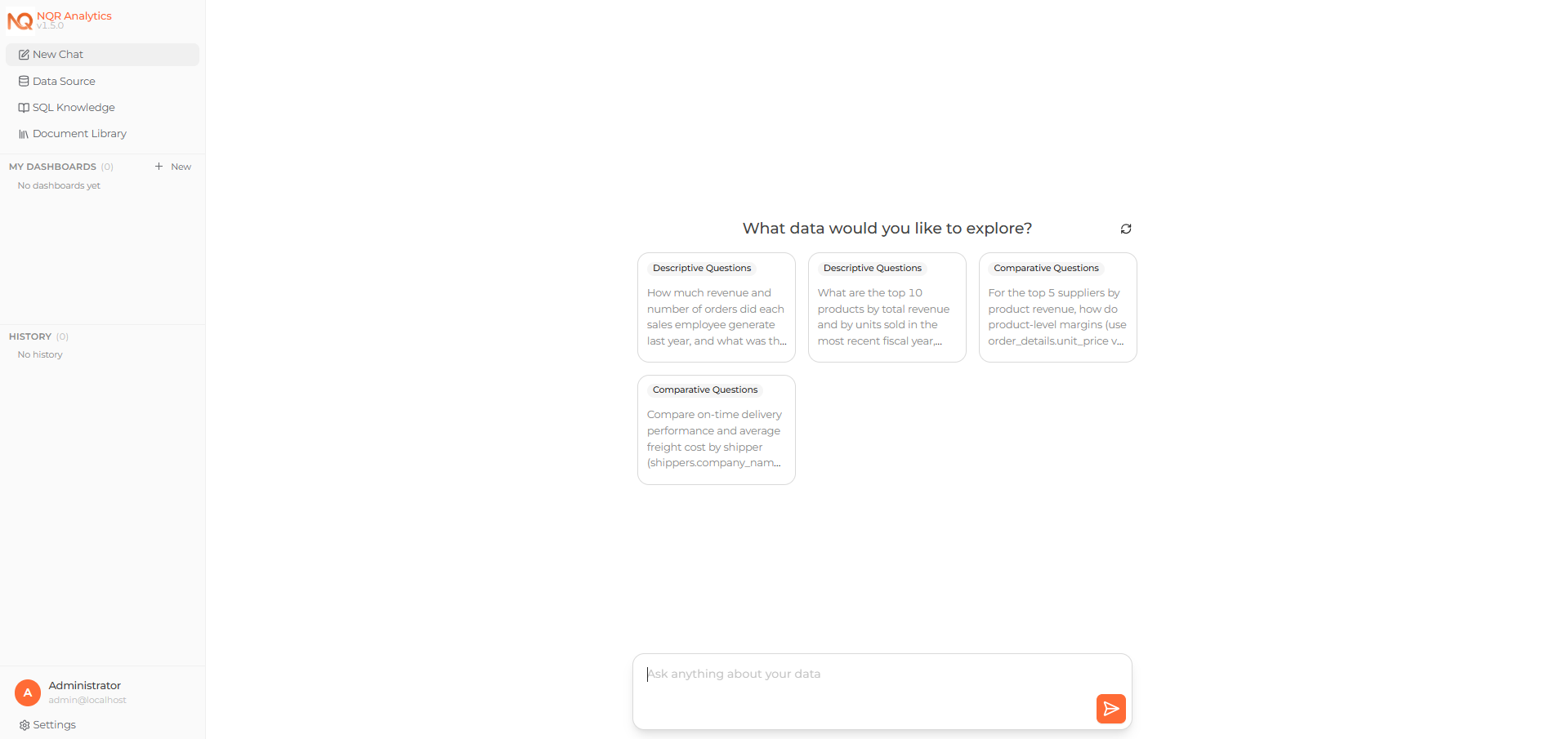 Asking a question about the connected data on the Home page