
Connect Redshift
Connect an Amazon Redshift cluster to NQRust Analytics.
NQRust Analytics connects to Amazon Redshift in three stages: enter connection settings, select tables, and define relationships.
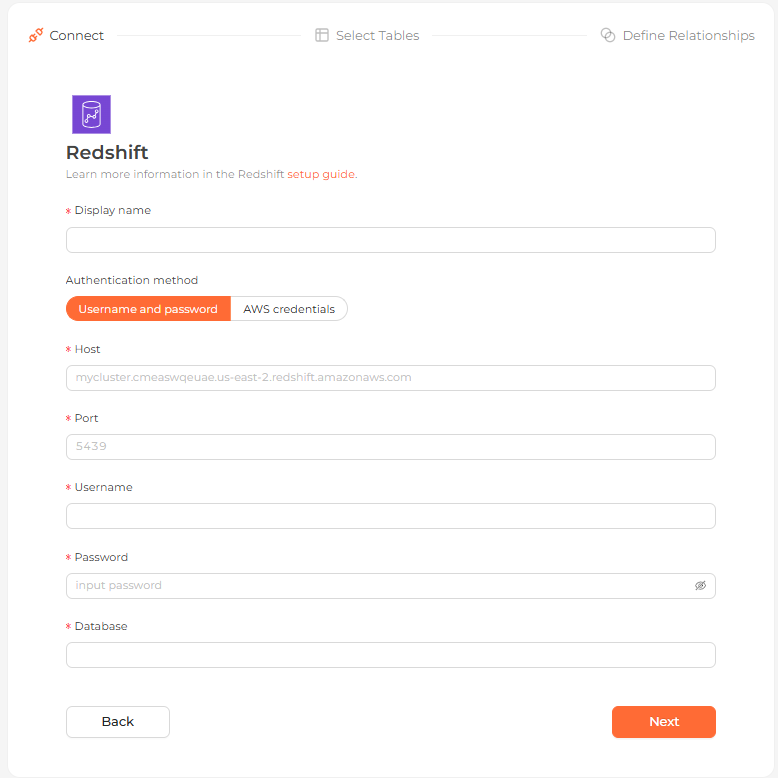 The Redshift connection form in the Analytics UI
Ensure your Redshift cluster's VPC and security groups allow connections
from the NQRust Analytics host. You may need to add an inbound rule that permits
traffic on port 5439.
Connection settings
First set a Display name, then use the Authentication method toggle to pick how you connect. Complete the fields for the method you choose.
| Field | Description |
|---|---|
| Display name | The name this database shows up as in the Analytics UI. |
| Field | Description |
|---|---|
| Host | The cluster endpoint, e.g. mycluster.xxxxxxxx.us-east-2.redshift.amazonaws.com. |
| Port | The cluster port (default 5439). |
| Username | The database username. |
| Password | That account's password. |
| Database | The database to connect to. |
| Field | Description |
|---|---|
| Cluster identifier | The Redshift cluster identifier, e.g. redshift-cluster-1. |
| Username | The Redshift database username specified in DB user permissions. |
| Database | The database to connect to. |
| AWS region | The region the cluster runs in, e.g. us-east-1. |
| AWS access key ID | Your access key ID. |
| AWS secret access key | Your secret access key. |
Steps
Enter connection details
Enter a display name, choose an authentication method with the Authentication method toggle, fill in the fields for that method, and continue.
Select tables
Every table in the connected database is listed. Choose the ones you want as data models.
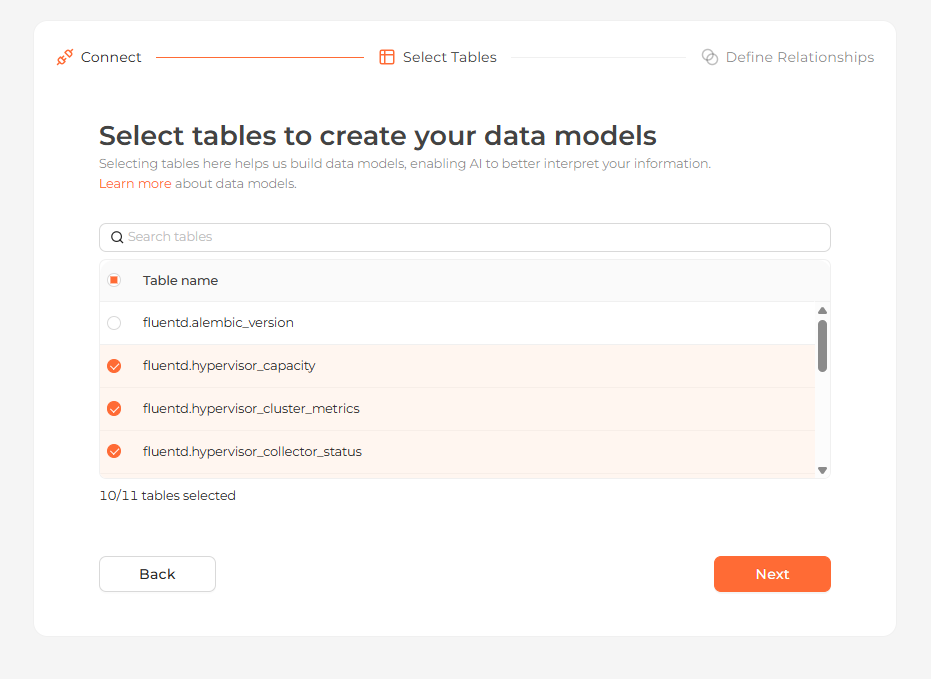 Selecting the tables to import as data models
Define relationships
NQRust Analytics suggests relationships from your primary and foreign keys, or you can use Add relationships to create your own. For each one, set:
- From — the source table and column
- To — the target table and column
- Relationship type — the kind of relationship between them
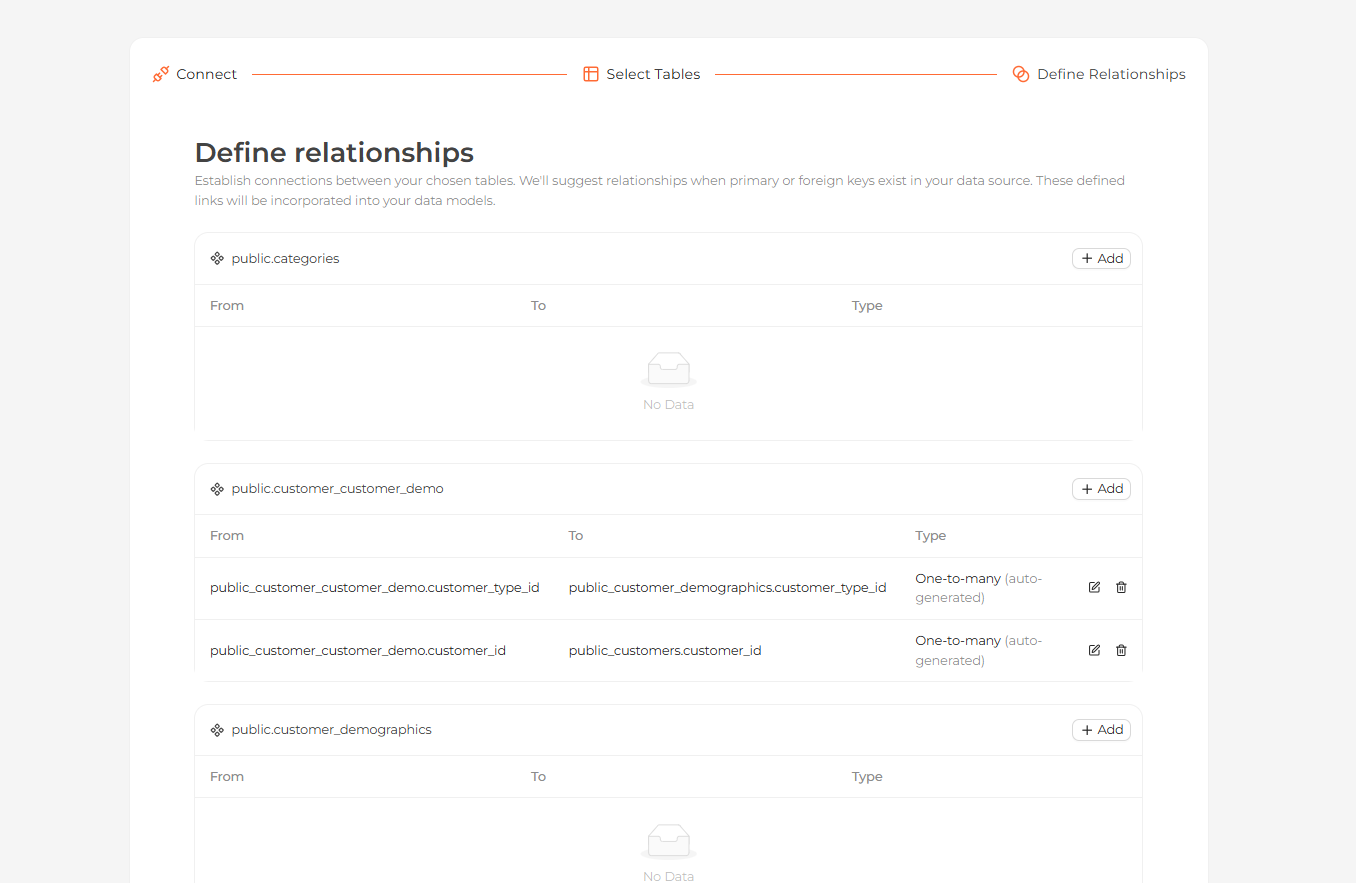 Defining relationships between the imported tables
Start exploring
Your tables now appear on the Modeling page. Open the Home page and ask questions about your data in natural language.
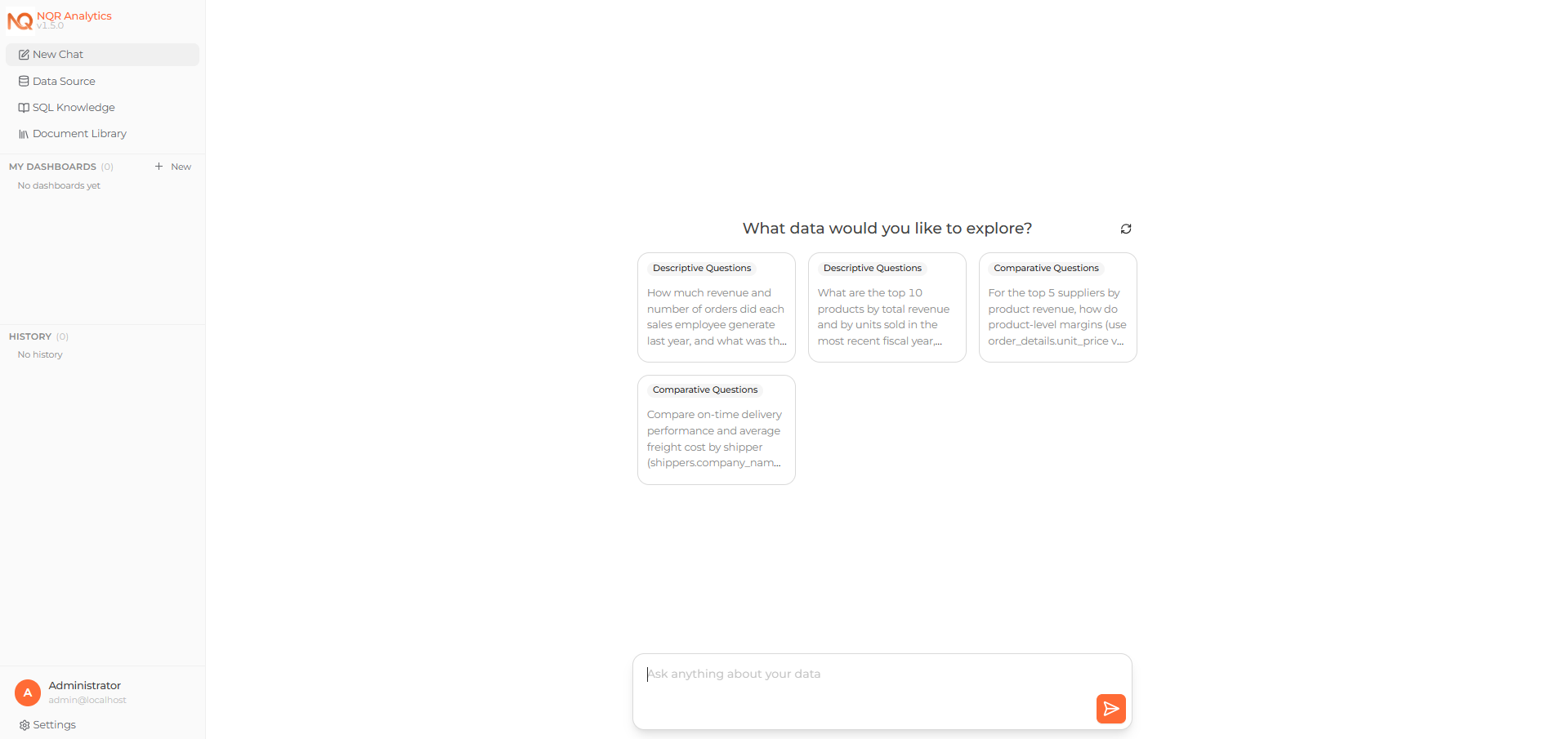 Asking a question about the connected data on the Home page