
Calculated Fields
Add custom columns using spreadsheet-style expressions that compute values across your models.
Calculated fields let you add custom columns computed from expressions, much like formulas in a spreadsheet such as Excel or Google Sheets. Define the logic once, and the column becomes available wherever the model is queried.
For every function you can use, see the Expression Reference.
Create a calculated field
Select the column the function applies to. Through relationships already defined on this model, you can also reference a column from a related model.
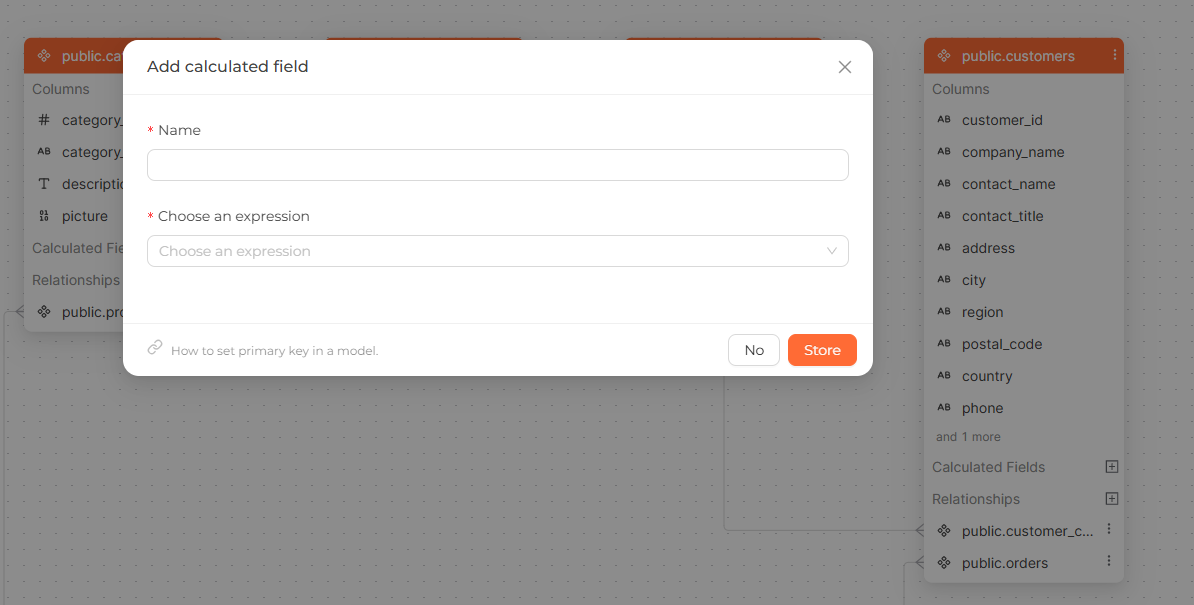 The add calculated field form: naming the field, picking a function, and selecting the column it applies to.
Update a calculated field
- Click the ... icon next to the calculated field on the model diagram.
- Choose Edit.
- Change the Name or expression.
Delete a calculated field
- Click the ... icon next to the calculated field on the model diagram.
- Choose Delete.
Deploy your changes
After editing on the Modeling page, click Deploy in the navbar to sync your changes to the Analytics Engine.
When changes are pending, the navbar shows an Undeployed changes message. Once
all changes are synced, it shows a synced message.