
Dashboard Cache
Cache dashboard query results to speed up loading for complex queries and large datasets.
Dashboard caching stores the results of your dashboard queries to improve performance. It is particularly useful for dashboards built on complex queries or large datasets.
Dashboard caching is disabled for DuckDB data sources, but available for the other supported sources.
Enabling dashboard cache
Click the more icon (⋮) in the top-right corner of your dashboard.
Choose Cache Settings from the dropdown.
In the cache settings drawer, turn on Enable Cache.
 The cache settings drawer with Enable Cache turned on and the refresh schedule options
Select a refresh schedule: daily, weekly, a custom schedule, or manual refresh only.
Manual cache refresh
You can refresh the cache manually in two places.
For an individual chart
- Click the more icon (⋮) in the top-right corner of the chart.
- Choose Refresh Cache.
For the entire dashboard
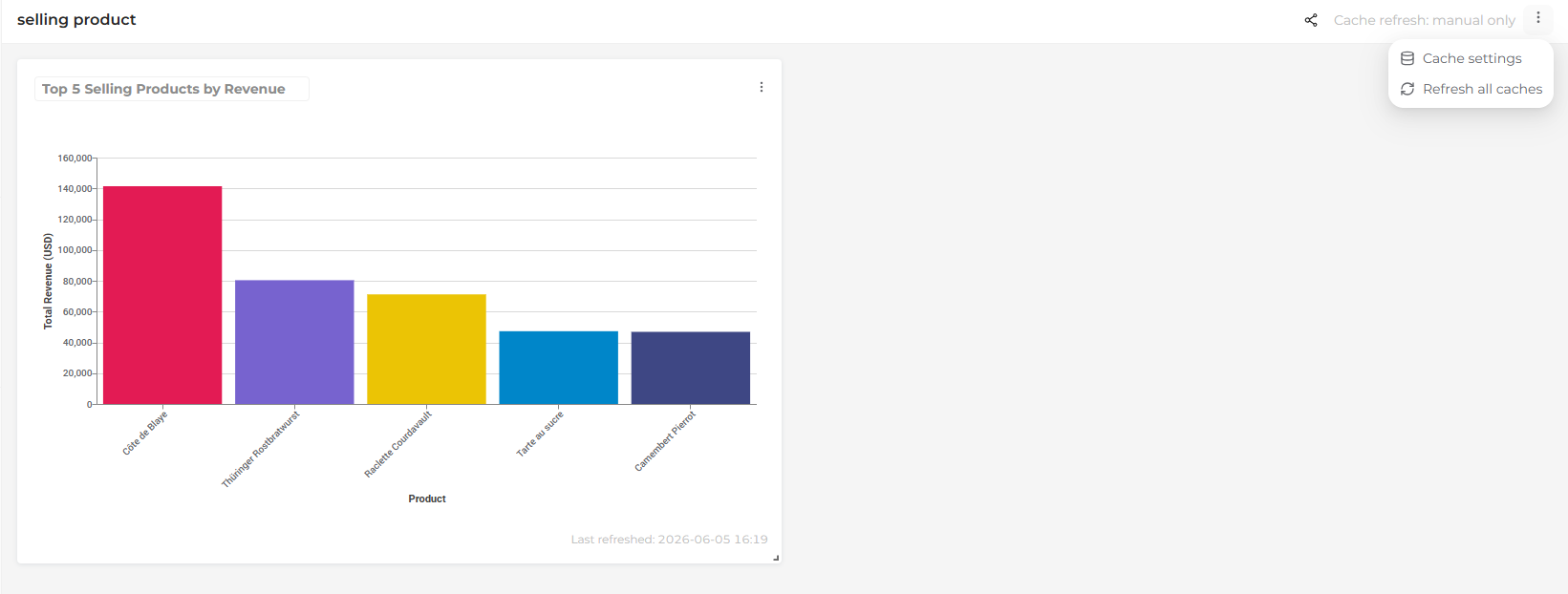
- Click the more icon (⋮) in the top-right corner of the dashboard.
- Choose Refresh All Caches.
Monitoring cache status
To check whether a chart is serving cached data and when it was last updated, review the bottom of the chart. A Last Refreshed timestamp indicates that the chart is using cached data, and shows when that cache was last built.