
Adjust Answers
Refine an answer by editing its reasoning steps or by changing the generated SQL directly.
When NQRust Analytics returns an answer, you can refine it in two ways: by editing the reasoning steps it used, or by editing the generated SQL directly.
Modify reasoning steps
The reasoning steps are the stages NQRust Analytics worked through to build the answer. They appear in the Answer preparation steps section.
To change them, click Adjust the answer and choose Adjust steps from the dropdown.
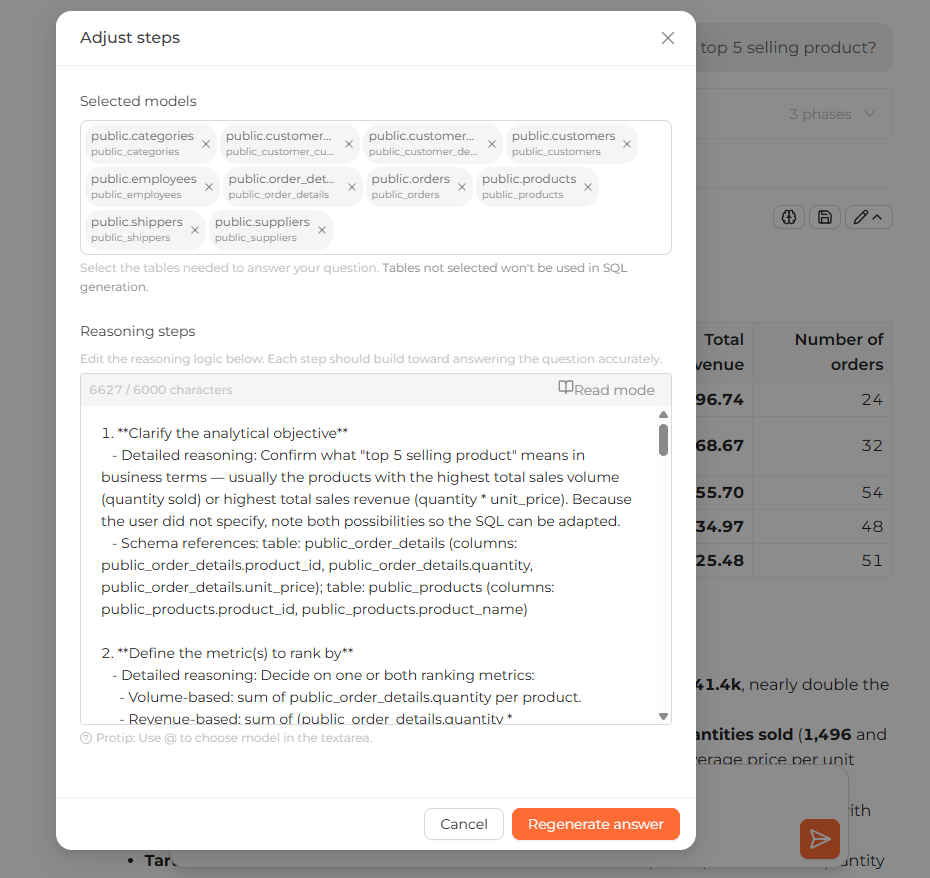 The Adjust the answer dropdown open, showing the Adjust steps and Adjust SQL options
You can edit both the reasoning steps and the selected models (which are retrieved through similarity search) to steer NQRust Analytics toward a more accurate, relevant answer. Switch to Read mode at any point to preview how the rendered answer will appear.
When you finish editing, click Regenerate answer to obtain the updated result.
Edit SQL directly
If you are familiar with SQL, you can adjust the generated query yourself:
Click Adjust the answer and choose Adjust SQL. You can also open the View SQL tab and click Adjust SQL straight from the SQL editor.
A popup with a SQL editor appears.
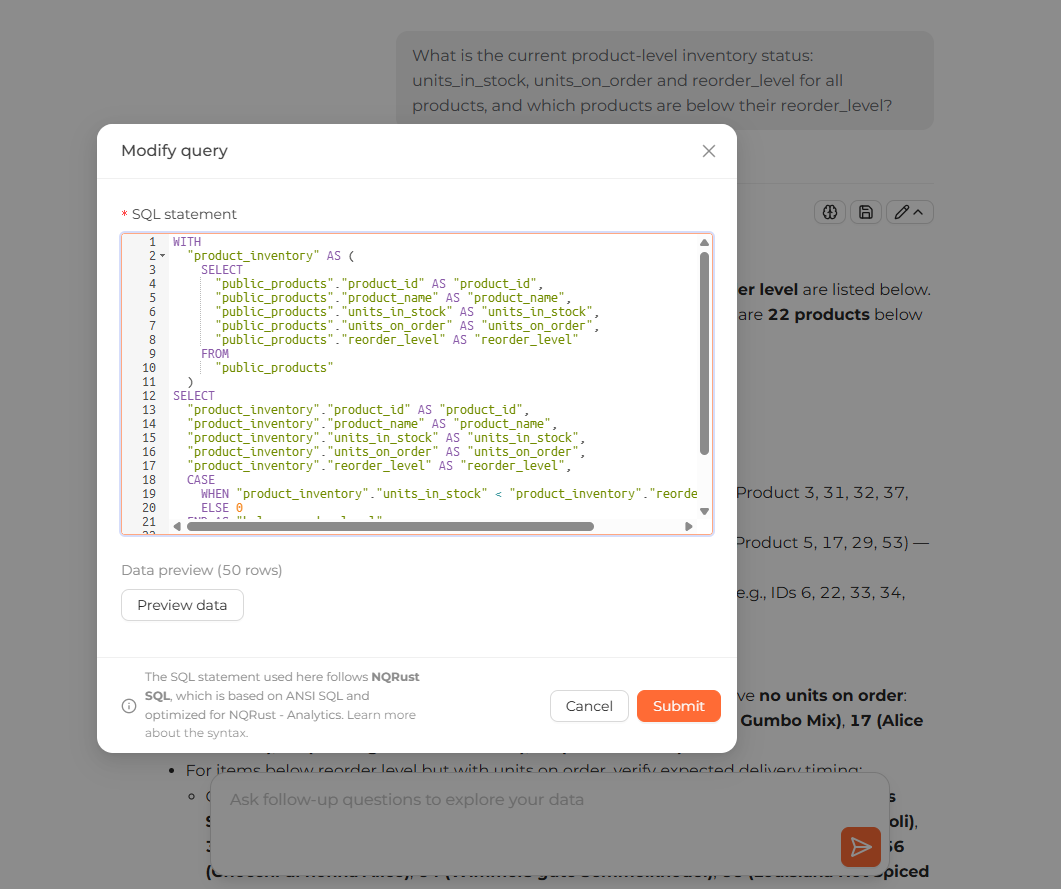 The Adjust SQL popup with the SQL editor showing the editable generated query
Make the required changes to the query.
Click Submit to regenerate the answer using your modified SQL.
Submitting edited SQL regenerates a new answer based on your changes.