
Demo Data (Northwind)
Explore NQRust Analytics immediately with the bundled Northwind sample database.
To support evaluation of NQRust Analytics before connecting your own database, the installer includes a Northwind demo database — the classic trading-company dataset. It is a small, realistic schema you can query immediately to learn how asking, modeling, and charts work.
What Northwind contains
Northwind models a sample wholesale business, with related tables such as:
- Customers and Orders (with order line items)
- Products, Categories, and Suppliers
- Employees and Shippers
This mix of entities and relationships is sufficient to practice realistic questions such as "top products by revenue" or "orders per customer this year."
Before you begin
Install and start NQRust Analytics with the Installation guide,
then open the Analytics UI at http://<server-host>:3000 (using your server's IP
address or hostname). The Northwind database runs alongside the app as the bundled
northwind-db service.
Connect to the demo database
Add a PostgreSQL data source
On the setup screen, select PostgreSQL and enter the bundled Northwind connection details:
| Field | Value |
|---|---|
| Display name | northwind_demo |
| Host | northwind-db |
| Port | 5435 |
| Username | demo |
| Password | demo123 |
| Database name | northwind |
| Use SSL | Off |
Select Next. For more about each field, see Connect PostgreSQL.
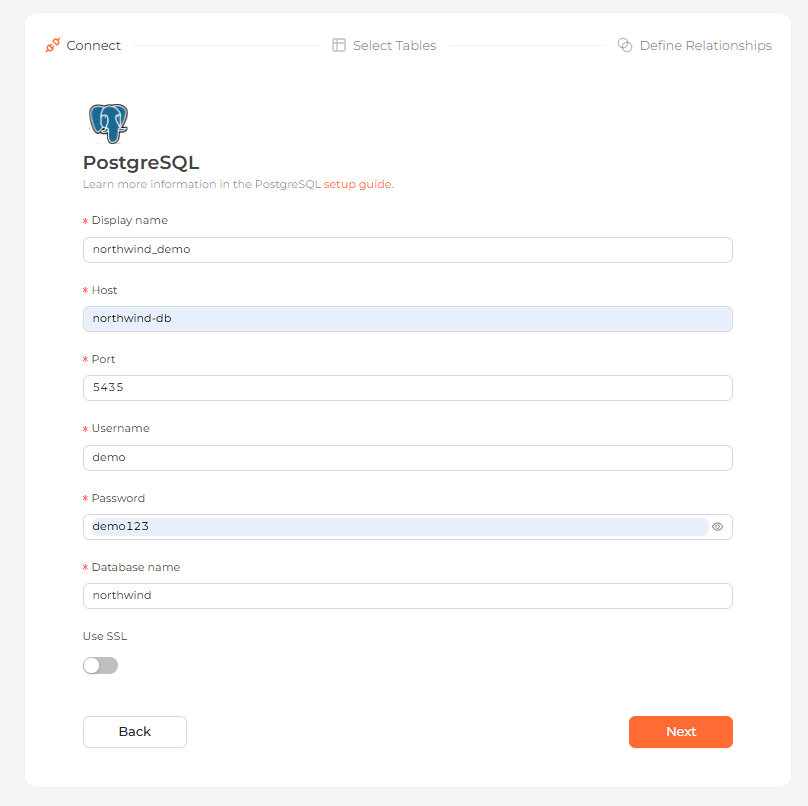 The PostgreSQL form filled in for the bundled northwind-db service
Select tables
Select the Northwind tables you want to import. Each table you select becomes a data model.
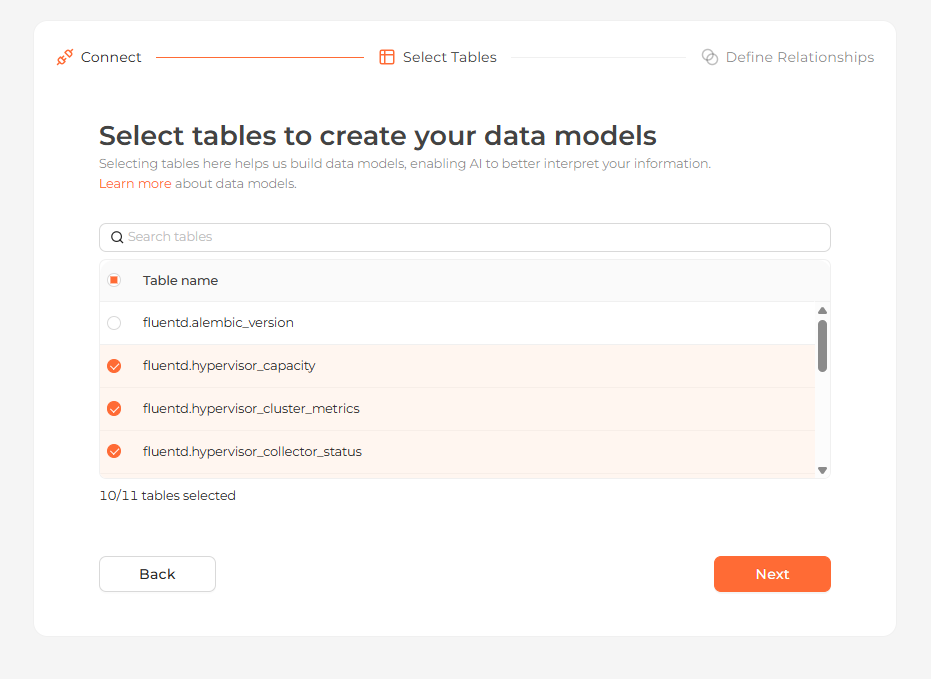 Selecting the tables to import as data models
Define relationships
Confirm how the Northwind tables relate to one another. NQRust Analytics suggests relationships from existing primary and foreign keys; you can adjust them or skip this step for now.
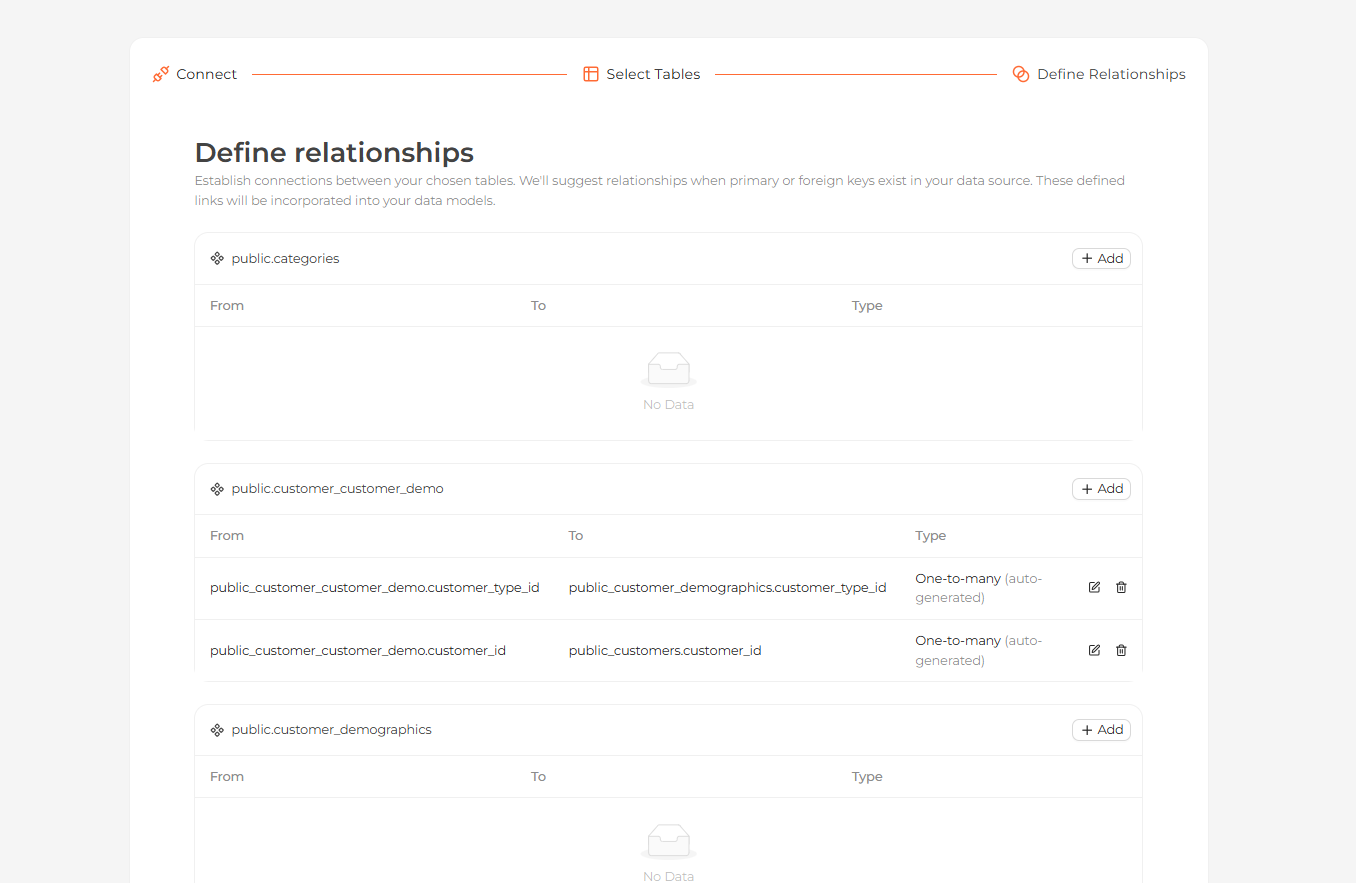 Defining relationships between the imported tables
Start exploring
Once the project is ready, ask questions on the Home page and inspect tables and relationships on the Modeling page.
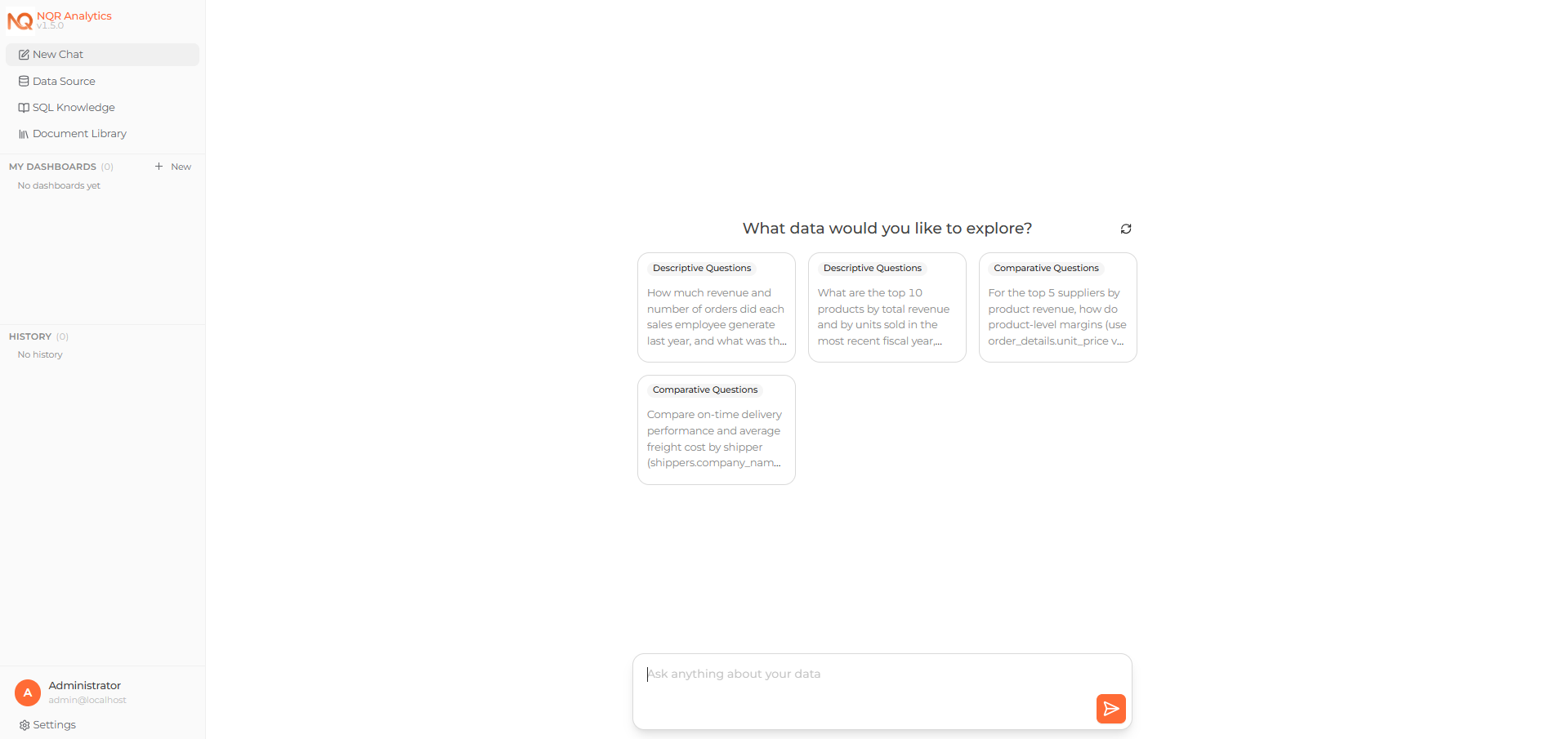 Asking a question about the connected data on the Home page
Verify the setup
Confirm the following:
- the project opens successfully
- you can ask a question from the Home page
- you can see tables and relationships on the Modeling page