
Quickstart
Go from a fresh installation to querying your data in natural language with NQRust Analytics.
This quickstart guides you through the core workflow: install NQRust Analytics, open the Analytics UI, and ask questions in natural language. To evaluate the platform before connecting your own database, begin with the bundled Northwind demo database.
Requirements
- NQRust Analytics installed and running. If you have not completed this step, follow the Installation guide first.
- A modern web browser.
The installer includes a ready-to-use Northwind demo database (PostgreSQL), so you can explore the platform end to end before connecting a production data source.
Steps
Install and start the platform
Run the NQRust installer to deploy the platform:
nqrust-analytics installSee the Installation guide for prerequisites and detailed setup notes.
Open the Analytics UI
Once the services are running, open the Analytics UI in your browser, replacing <server-host> with your server's IP address or hostname:
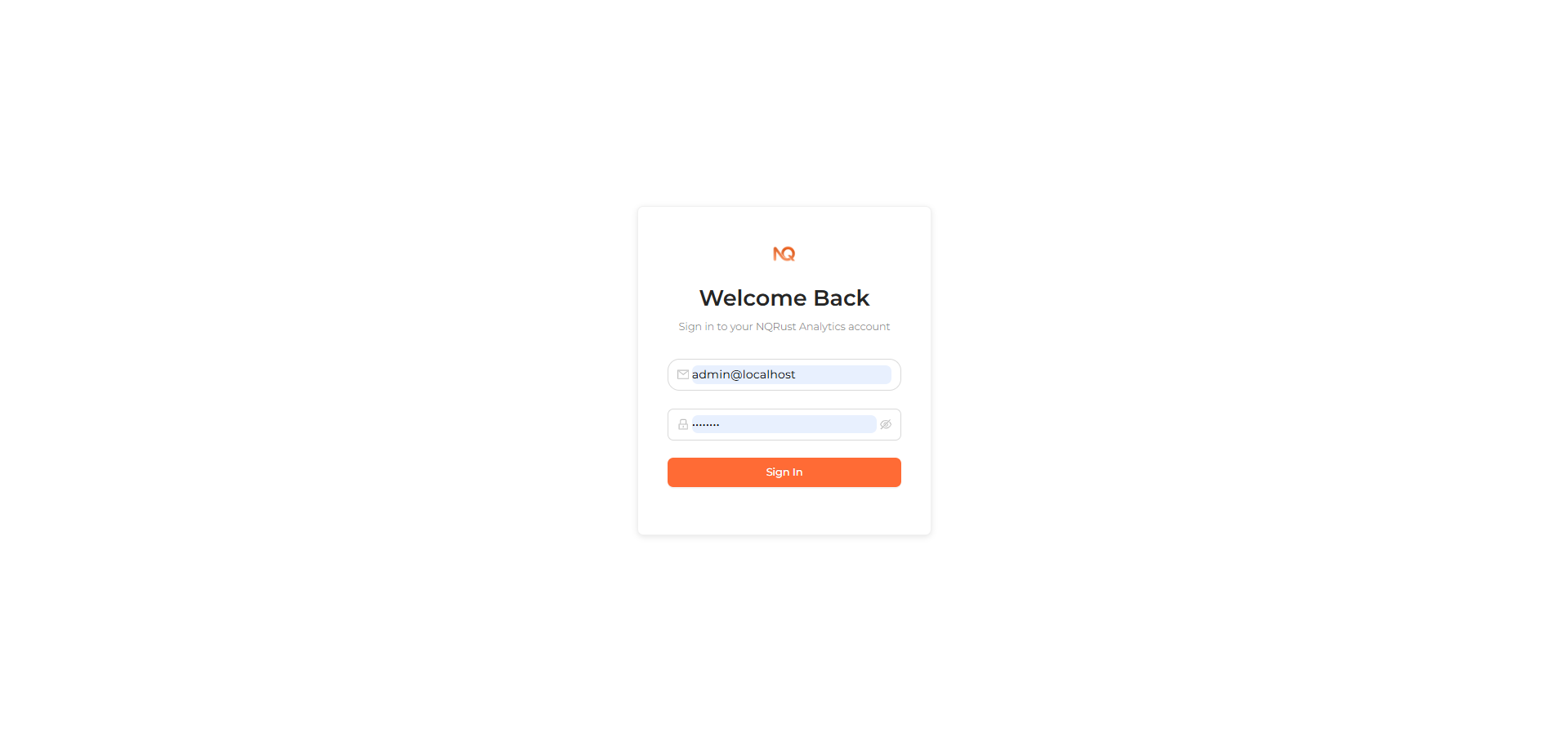
http://<server-host>:3000On your first visit, sign in with the default administrator account created during installation (admin@localhost / admin123), then change the password.
 The Analytics UI Home page where you ask questions
Choose how to start
You have two options for adding data to the platform:
- Use the demo database — connect to the bundled Northwind sample database to explore immediately. See Demo data (Northwind).
- Connect your own data — point the platform at a production database or files. See Connect your data and the data source overview.
Ask your first question
With a project in place, open the Home page and enter a question in natural language, for example:
What are the top 5 products by total revenue?NQRust Analytics translates your question into SQL against your modeled data, runs it, and returns the result along with the generated query so you can inspect exactly what was executed.
 A question's answer with the result table and generated SQL