
Sharing Dashboards & Threads
Share a dashboard or a chat thread with other users in your deployment, and choose whether they can view or edit.
You can share two kinds of objects with other users: dashboards and chat threads (conversations). Both work the same way — you share with an existing user by email address and select a permission level.
Shares are user-to-user, inside the same deployment. The email you enter must belong to an account that already exists. You cannot share with yourself, and there are no public or anonymous share links.
Permission levels
Dashboards and threads use the same two permission levels:
| Permission | Dashboard | Thread |
|---|---|---|
View Only (view) | Can open and view the dashboard. Cannot add charts to it. | Can open and view the conversation. |
Can Edit (edit) | Can open the dashboard and add charts (items) to it. Still cannot rename, set as default, delete, or manage sharing. | Can open the conversation. |
The default permission when you share is View Only.
Editor is not owner. Even with Can Edit, only the dashboard's owner (the user who created it) can rename it, set it as the default, delete it, or manage who it is shared with. Re-sharing a share with the same user updates that user's permission rather than creating a duplicate.
Sharing a dashboard
Only the owner of a dashboard can share it or change its shares.
Open the share dialog. Right-click a dashboard you own in the sidebar and choose Share.
Enter an email. Type the email address of an existing user in the deployment.
Choose a permission. Pick View Only or Can Edit, then click Share.
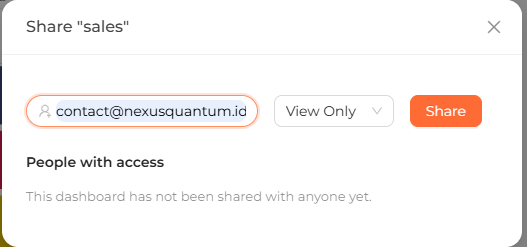 The Share dashboard dialog with an email field and View Only / Can Edit permission.
The dialog lists everyone the dashboard is currently shared with, along with their permission. To revoke access, remove the user from that list; they will no longer be able to view the dashboard.
Sharing a chat thread
Threads (chat conversations) are owned by the user who created them. Only the thread owner can share it or manage its shares.
Open the thread share dialog for a conversation you own.
Enter an email of an existing user in the deployment.
Choose a permission — View Only or Can Edit — and share.
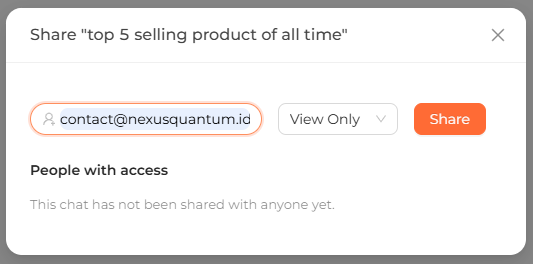 The Share thread dialog showing shared users and their view/edit permission.
As with dashboards, the dialog shows the users the thread is shared with, and you can remove a user to revoke their access. Sharing again with a user who already has access updates their permission rather than adding a duplicate.