
Managing Documents
Upload documents, organize them into folders, and track indexing status — including OCR for scanned PDFs.
Open Document Library from the sidebar to upload, organize, and monitor your documents. This page covers adding documents and keeping them organized; for asking questions, see Chat with documents.
Uploading documents
Click Upload documents (or Upload your first document on an empty library).
Pick one or more files. You can also create or open a folder first to upload directly into it.
Each file is saved and queued for indexing. New documents appear immediately with a processing status and update automatically as indexing finishes.
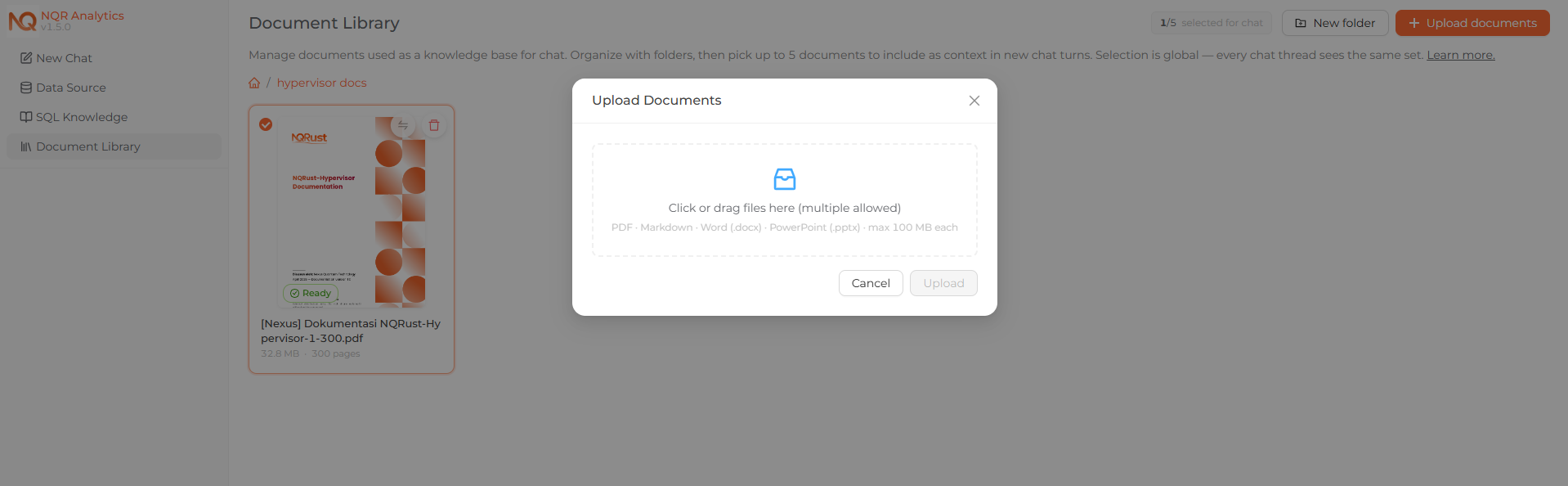 The upload flow: picking files to add to the Document Library.
Supported formats
The Document Library accepts these formats:
| Format | Extensions | How it's processed |
|---|---|---|
.pdf | Native PageIndex (text extraction, with OCR fallback for scanned pages) | |
| Markdown | .md, .markdown | Indexed directly |
| Word | .docx | Converted to Markdown (headings → outline), then indexed |
| PowerPoint | .pptx | Each slide converted to a Markdown heading with bullets and speaker notes, then indexed |
Legacy Office formats (.doc, .ppt) and spreadsheets (.xls, .xlsx) are intentionally not supported — the indexing engine cannot build a useful structure from them. A .docx or .pptx that contains no extractable text (for example, an image-only deck) fails with a clear message.
Word conversion preserves Heading 1/2/3 styles as document outline levels, plus bold, italic, lists, links, and tables. PowerPoint conversion turns each slide into a # Slide N: <title> section, emits body text as bullets, keeps speaker notes in a ## Notes subsection, and filters out repeated template boilerplate (logos, footers).
Maximum file size
The per-file upload limit is controlled by the DOCUMENT_MAX_SIZE_MB environment variable. The installer template sets it to 100 MB:
# Max upload size per document (in MB).
DOCUMENT_MAX_SIZE_MB=100
Both the browser (pre-validation) and the server enforce this limit; the server is authoritative. Raise the value if your users need to upload larger PDF, Word, or PowerPoint files.
There are also internal caps to keep the library performant: a soft limit of 100 documents per install and a maximum filename length of 255 characters. Re-uploading a file that is already indexed reuses the existing copy and does not count against the document cap.
OCR for scanned PDFs
When a PDF page has no machine-readable text layer (a scan, a photographed contract, or an image-only export), NQRust Analytics automatically falls back to OCR so the page can still be indexed:
- OCR runs with Tesseract, rendering each text-less page at 200 DPI.
- The default OCR languages are Indonesian + English (
ind+eng). - Only pages that are missing a text layer are sent through OCR, so mixed documents (some real text, some scans) index efficiently.
- A PDF is only marked Failed as image-only if every page is empty and OCR couldn't recover any text from any of them.
OCR requires the Tesseract binary (and its language packs) to be available. These ship in the AI service container image, so no setup is required in a standard install. If the binary is missing, OCR is skipped, and documents that rely on it may index with little or no text.
Organizing with folders
Documents can be grouped into nested folders, for example Tax / 2026 / Q1 / Receipts.
- Create a folder — click New folder. A folder is created in your current location.
- Open / navigate — click a folder to open it; use the breadcrumb at the top to return up the path.
- Rename — rename a folder from its card menu.
- Move a folder — move a folder under a different parent (or back to the root). You cannot move a folder into itself or one of its own descendants.
- Move a document — move a single document into any folder (or to the root) from its card menu.
Folders can be nested up to 5 levels deep, with a soft cap of 200 folders per workspace and a 100-character name limit.
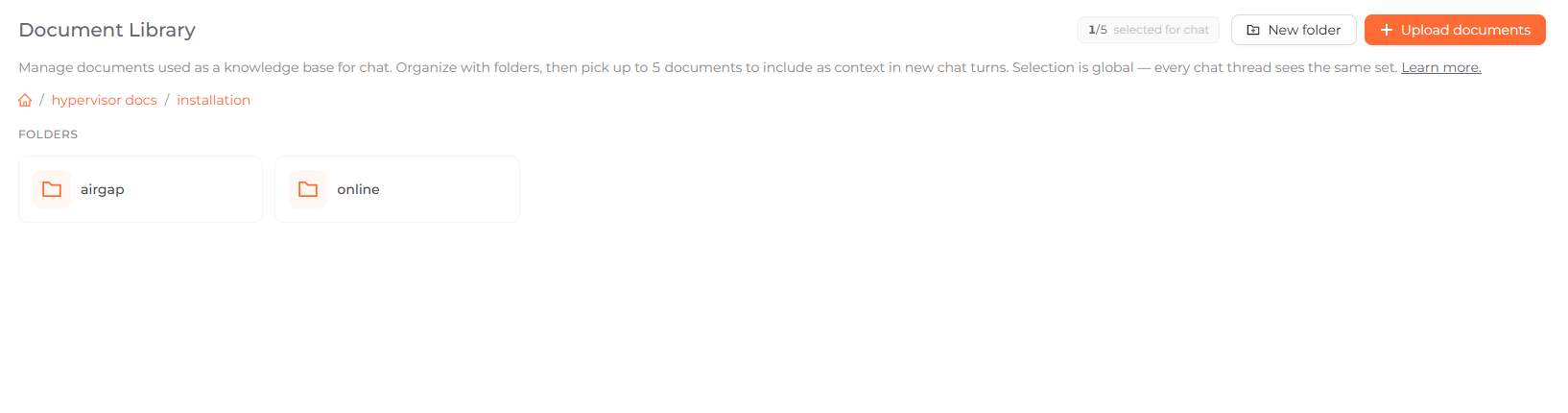 Nested folders with breadcrumb navigation in the Document Library.
Deleting a folder
When you delete a folder that still contains items, you choose what happens to its contents. The confirmation dialog shows how many sub-folders and documents are affected (the full subtree, not just what is on screen):
- Move to parent — the folder's sub-folders and documents are moved up to the deleted folder's parent.
- Delete all — the entire subtree of folders is removed; documents inside it are unlinked from any folder and become root-level (the files and their indexes are not deleted).
Deleting a document (from its card menu) is permanent: it removes the file, its index, and any chat selection. This cannot be undone.
Processing status
Every document shows where it is in indexing:
| Status | Meaning |
|---|---|
| Pending | Uploaded and queued for indexing. |
| Indexing | Being processed into a hierarchical index in the background. |
| Ready (indexed) | Fully indexed and available to select as chat context. |
| Failed | Indexing couldn't complete; the document shows an error message. |
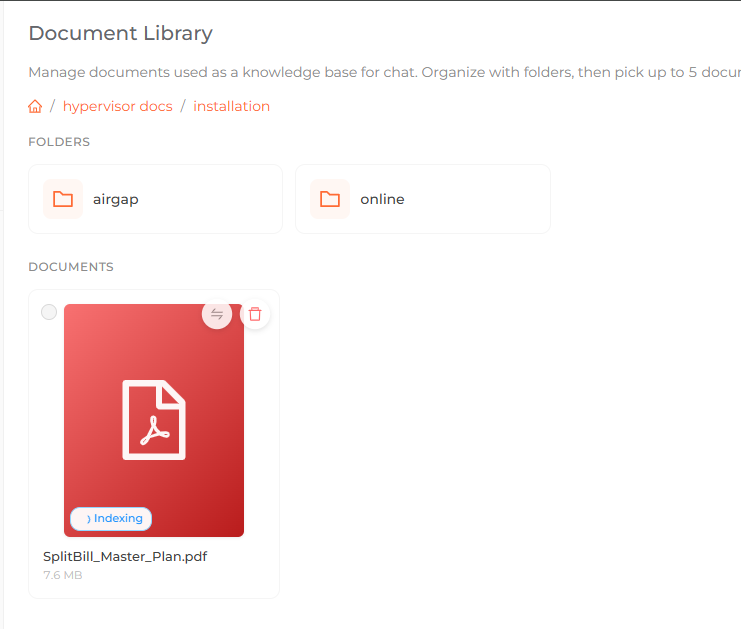 Document cards showing Indexing, Ready, and Failed processing status.
The library polls automatically while any document is still indexing, so cards update on their own — there is no need to refresh. Indexing of a PDF builds a table-of-contents-style tree (section titles mapped to pages) so retrieval can cite the correct section later. If a clean structure cannot be built, the engine falls back to a per-page structure; the document remains usable for chat, with coarser citations.