
Single Sign-On (SSO)
Enable NQRust Identity single sign-on for NQRust Analytics.
In addition to email and password, NQRust Analytics can let users sign in through an external identity provider. The SSO provider is NQRust Identity.
You can enable SSO in two ways:
- From the installer's Configure Identity SSO screen during installation (recommended).
- By setting the
KEYCLOAK_*variables in your.envfile directly.
After changing any authentication environment variable, re-run the installer and select Proceed with installation to apply the new settings.
NQRust Identity
When NQRust Identity is enabled, the login screen shows a Login with NQRust Identity button above the email/password form. Selecting it sends the user to the NQRust Identity realm to authenticate, then returns them to NQRust Analytics.
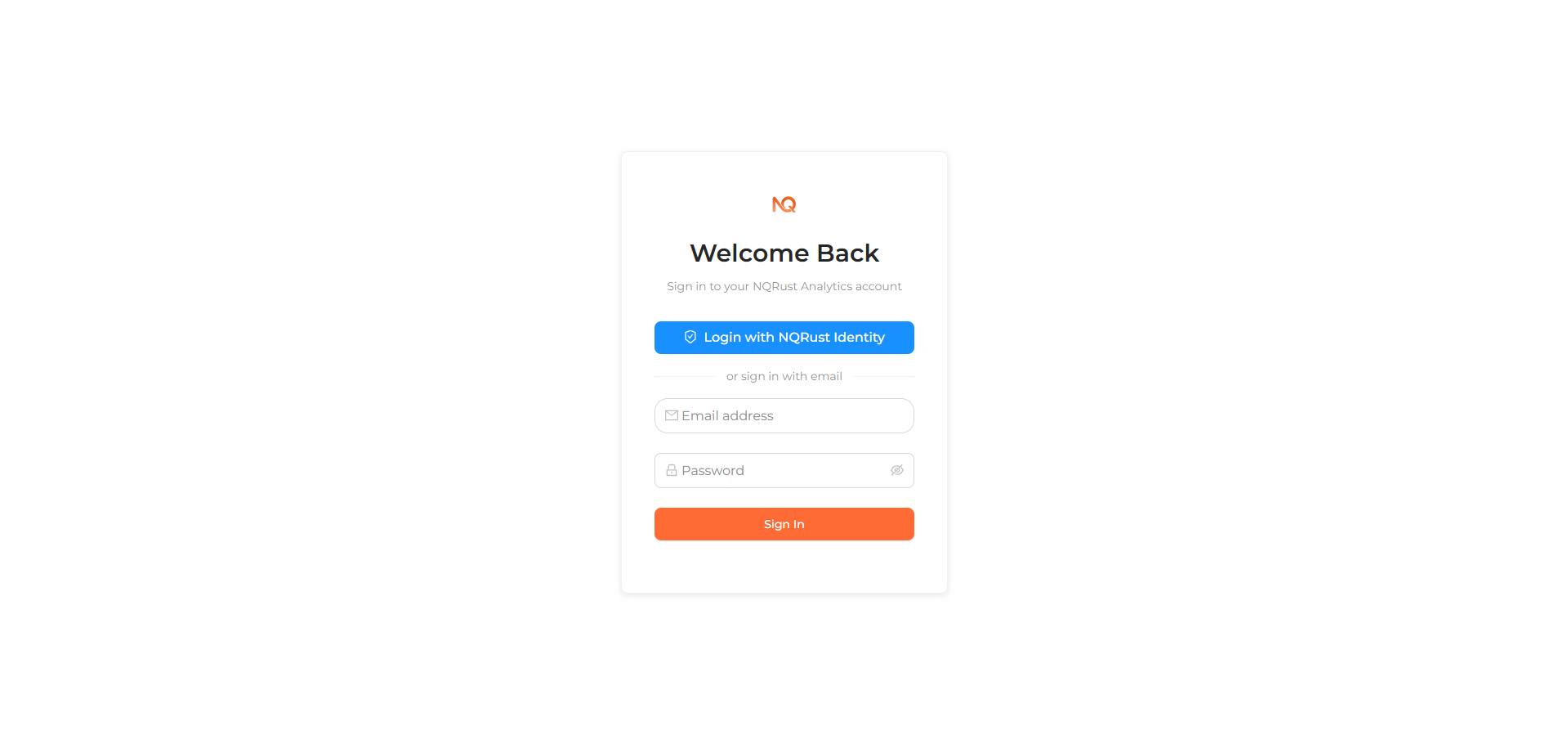 The sign-in screen with the Login with NQRust Identity button above the email/password form.
Configure from the installer
On the installer's main menu, select Configure Identity SSO (optional) to open the configuration form. Set Enable Identity SSO to Yes, then complete the fields:
| Field | Default | Description |
|---|---|---|
| Enable Identity SSO | No | Toggle to Yes to enable SSO. |
| Protocol | http | http or https. |
| Host | — | The NQRust Identity host, for example 192.168.1.100 or localhost. Required. |
| Port | — | The NQRust Identity port, for example 8082. Required. |
| Realm | myrealm | The NQRust Identity realm name. |
| Client ID | nqrust-analytics | The OAuth client registered in NQRust Identity. |
| Client Secret | — | The client's secret. Required. |
| Default Role | viewer | Role granted to users auto-created on first sign-in: viewer, editor, or admin. |
| Auto-register new SSO users | Yes | Create a local account automatically on first sign-in. |
The Protocol, Host, and Port together form the NQRust Identity address. From
them the installer derives both the browser-facing URL (KEYCLOAK_PUBLIC_URL) and
the server-side URL (KEYCLOAK_URL). If the host is localhost, the server-side
URL automatically uses host.docker.internal so the container can reach NQRust Identity.
Select Save (or press Ctrl+S) to write these settings into .env. The
installer returns to the main menu — choose Proceed with installation to start
or restart the services with SSO enabled. Choose Skip to leave SSO disabled.
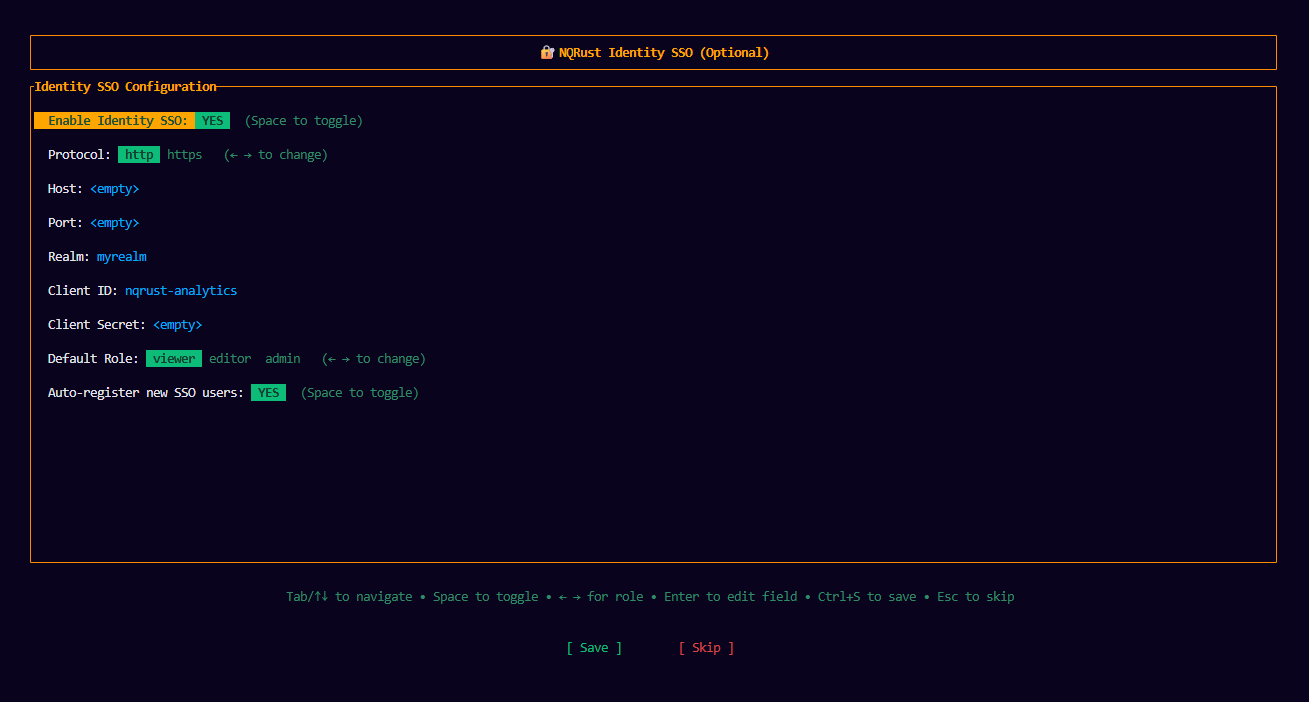 The Configure Identity SSO form in the installer
Environment variables
| Variable | Required | Default | Purpose |
|---|---|---|---|
KEYCLOAK_OAUTH_ENABLED | Yes | — | Set to true to enable NQRust Identity SSO |
KEYCLOAK_PUBLIC_URL | Yes | — | Browser-facing base URL of NQRust Identity (used for the authorization redirect and as the token issuer) |
KEYCLOAK_URL | Yes | — | Server-to-server base URL of NQRust Identity (used for the token, userinfo, and JWKS endpoints) |
KEYCLOAK_REALM | No | master | NQRust Identity realm name |
KEYCLOAK_CLIENT_ID | Yes | — | OAuth client ID registered in NQRust Identity |
KEYCLOAK_CLIENT_SECRET | Yes | — | OAuth client secret for that client |
KEYCLOAK_DEFAULT_ROLE | No | viewer | Role assigned to a user auto-created on first sign-in |
KEYCLOAK_AUTO_REGISTER | No | true | Whether to create a local account on first sign-in |
The installer's form pre-fills KEYCLOAK_REALM as myrealm and
KEYCLOAK_CLIENT_ID as nqrust-analytics. The master value above is only the
fallback the application uses if KEYCLOAK_REALM is left unset.
KEYCLOAK_PUBLIC_URL and KEYCLOAK_URL are intentionally separate. The
browser must reach NQRust Identity at its public address (for example
http://localhost:8081), while the UI container reaches NQRust Identity directly for
the token, userinfo, and certificate endpoints (for example
http://host.docker.internal:8081). Setting both correctly is what allows SSO
to work from a browser and from inside the container at the same time.
KEYCLOAK_OAUTH_ENABLED=true
KEYCLOAK_PUBLIC_URL=http://localhost:8081
KEYCLOAK_URL=http://host.docker.internal:8081
KEYCLOAK_REALM=master
KEYCLOAK_CLIENT_ID=nqrust-analytics
KEYCLOAK_CLIENT_SECRET=your-client-secret
KEYCLOAK_DEFAULT_ROLE=viewer
KEYCLOAK_AUTO_REGISTER=true
The OpenID scope requested is openid email profile, and the flow uses PKCE
and state checks.
Auto-registration and roles
When a user signs in through NQRust Identity for the first time, what happens
depends on KEYCLOAK_AUTO_REGISTER:
true(default): a local account is created automatically. The user's email, display name (from thenameorpreferred_usernameclaim), and avatar are copied from NQRust Identity, the account is marked active and verified, and it is assigned the role named byKEYCLOAK_DEFAULT_ROLE(defaultviewer).false: users who do not already have a local account are not created and cannot sign in through SSO. Only people an administrator has already provisioned can use NQRust Identity.
In both cases, a user whose local account is inactive is denied sign-in. The password field of an SSO-created account is left empty; such users sign in through NQRust Identity rather than with a password.
KEYCLOAK_DEFAULT_ROLE only sets the role granted at auto-registration. You can
change a user's role afterward from User Management. See
Roles.
TLS note
If your NQRust Identity is served behind a proxy with a self-signed certificate, the
installer sets NODE_TLS_REJECT_UNAUTHORIZED=0 so the UI can complete the
server-to-server calls. Adjust this setting to match your TLS configuration in
production.